Adobe Photoshop: The King of Pixels and Photo Editing
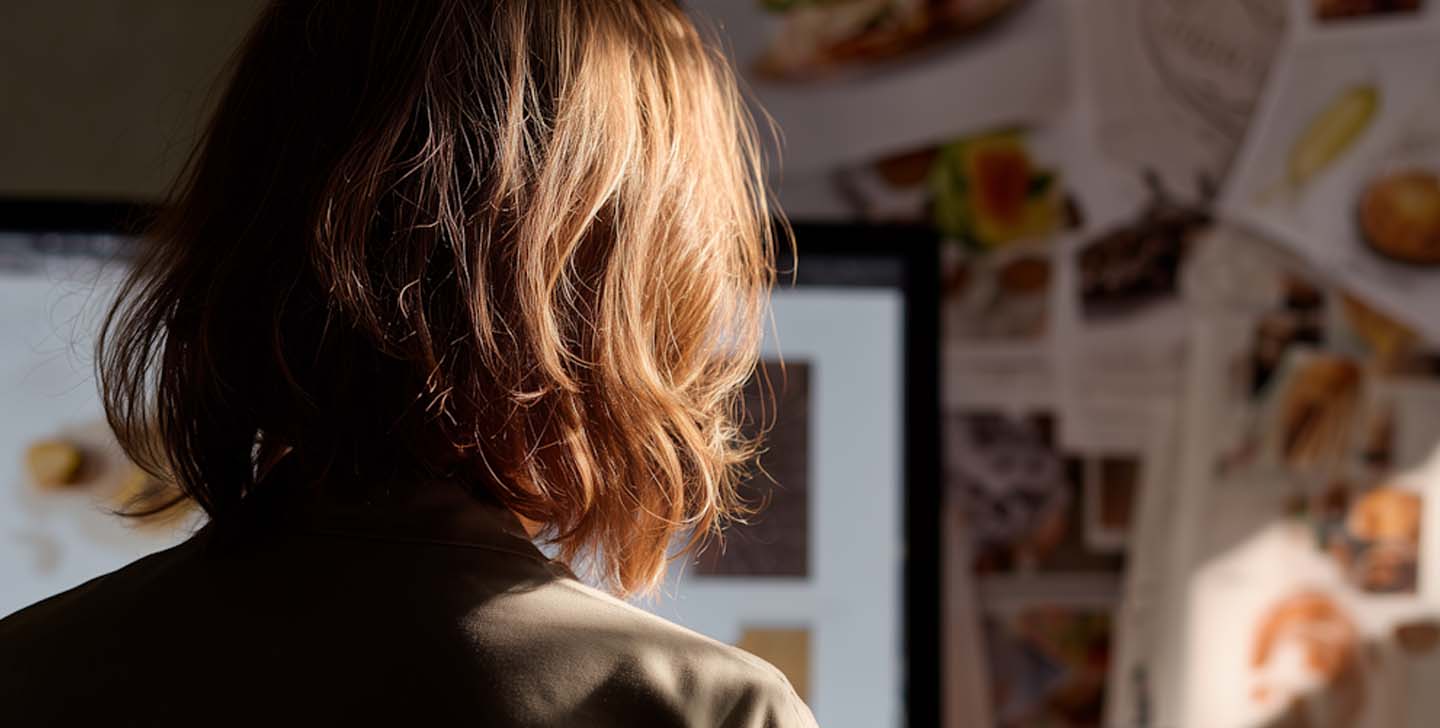
Adobe Photoshop is probably the most famous and iconic design software in the world. It’s a pixel-based image editing programme and the ideal tool for editing photographs with pinpoint precision, correcting colour balance in an image, removing imperfections from a portrait, or restoring an old photo.
Beyond photo editing and retouching, it’s also a tool that lets you combine elements from multiple images to create entirely new and surreal scenes, or use an infinite variety of brushes for artists and illustrators seeking a painterly, textured finish. If your project involves manipulating existing images with realistic effects of light, shadow, and detail, Photoshop is your indispensable ally.
Adobe Illustrator: The Master of Vectors and Scalability
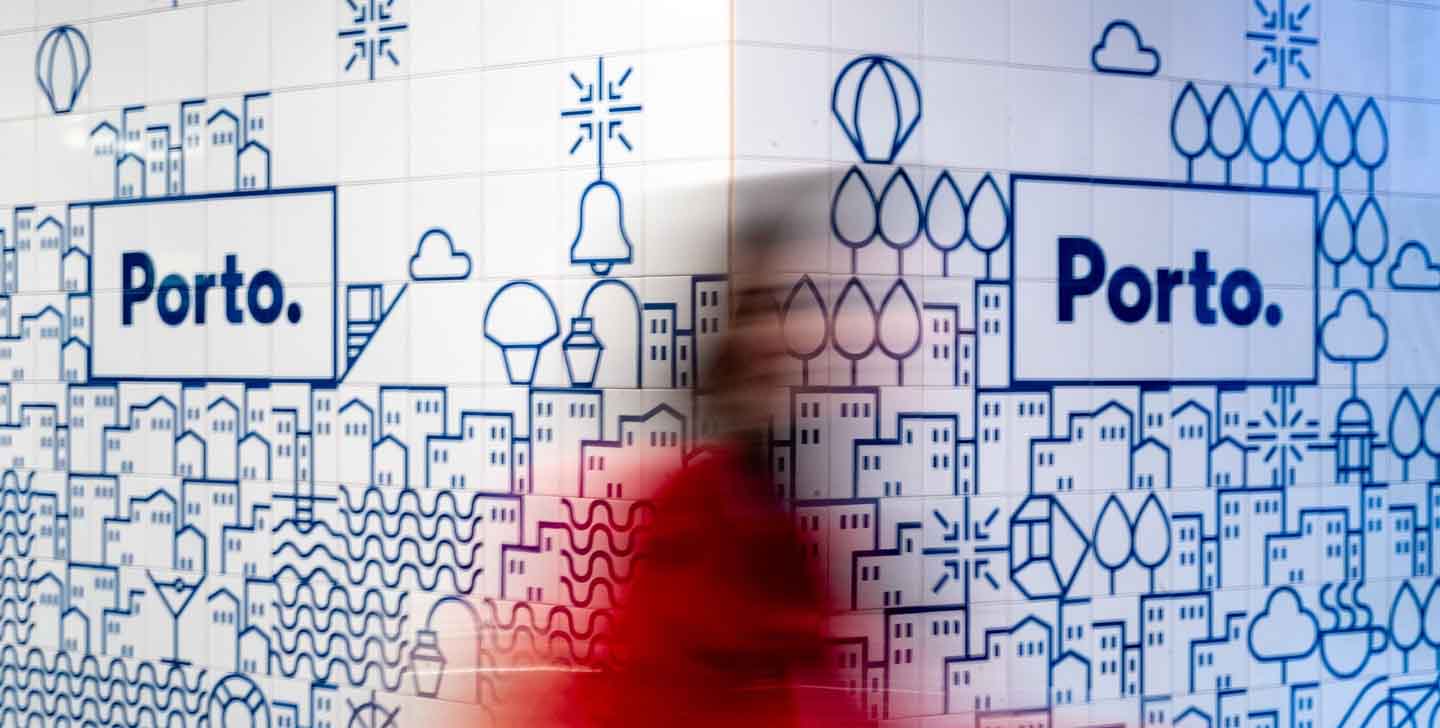
While Photoshop works with pixels, Adobe Illustrator uses vectors. That’s where the magic—and the big difference—lies. A vector isn’t a point of colour but a mathematical formula that defines shapes through points, lines, and curves. What does this mean in practice? A design created in Illustrator can be scaled to any size without losing the slightest bit of quality. The logo you design for a business card can be enlarged for a giant billboard and still look just as sharp and perfect.
That’s why it’s the industry standard for branding and logo creation, ensuring versatility and quality at any size. It also excels in creating clean illustrations, custom typography, infographics, and graphics that require absolute precision and sharpness. If you need something that adapts without losing quality, Illustrator is the obvious choice.
Differences between Photoshop and Illustrator and When to Use Each One
The fundamental difference between Photoshop and Illustrator lies in how each tool handles images. Photoshop uses pixels, making it perfect for editing photos and creating images with lots of detail and effects like light or shadow. Illustrator, on the other hand, works with vectors, allowing you to create graphics that never lose quality, no matter how much you enlarge or reduce them.
When to Use Photoshop
Choose Photoshop when your main task is editing or manipulating existing images. It’s perfect for projects like retouching a portrait, creating a collage for a magazine cover, or designing a banner for an Instagram campaign where you combine photos and text.
When to Use Illustrator
Conversely, opt for Illustrator when you need to create a graphic from scratch that must be versatile and adaptable. It’s the essential tool for branding (logos, colour palettes, icon systems) and for any illustration that requires clean lines and the ability to be resized without issues.
Is It Possible to Combine Them?
Although they’re often compared, Photoshop and Illustrator aren’t rivals but allies. Many designers combine both programmes and use them in tandem to leverage all their strengths and develop more complete, professional projects, as each tool brings the best of its speciality.
For example, you could design a crisp logo in Illustrator, with precise shapes and defined colours, and then import it as a smart object into Photoshop. There, you integrate it into a photograph, adding shadows, textures, and lighting effects to make it fit perfectly into a final composition, such as an advertisement. In this way, you’ve used Illustrator’s precision for the branding element and Photoshop’s manipulation power for the final composition.
Learn, Choose, and Combine
As you’ve seen, the Photoshop vs Illustrator discussion isn’t about which software is superior—it’s not about picking one and discarding the other—but about recognising what each tool contributes so you can select the right one for the project. Mastering both programmes will not only give you versatility but also open the doors to a universe of creative and professional possibilities, allowing you to tell visual stories without limits.